

Let’s be real—Excel is either your best friend or your worst nightmare. One day, you’re smoothly organizing data like a pro; the next, you’re stuck wondering, “Why is this formula not working?!” 😩
But what if I told you Excel has secret shortcuts! yes, that can save you hours of work? These 10 insanely useful Excel hacks will make your spreadsheets faster, cleaner, and way more fun to use. Ready? Let’s dive in! 🚀
1. Flash Fill – Let Excel Read Your Mind! 🧠✨
Do you ever wish Excel could just figure out what you want? Well, it can! Flash Fill is like Excel’s mind-reading trick—it learns patterns and fills in the rest automatically.
How It Works:
- Type the first correct value in a column (e.g., extract first names from a full name list).
- Press Ctrl + E—and boom! Excel does the rest.
Example:
| Full Name | First Name (You Type) | Excel Fills In 🚀 |
|---|---|---|
| John Smith | John | John |
| Sarah Lee | Sarah | Sarah |
| Mike Brown | Mike | Mike |

2. Remove Duplicate Entries in Just One Click!
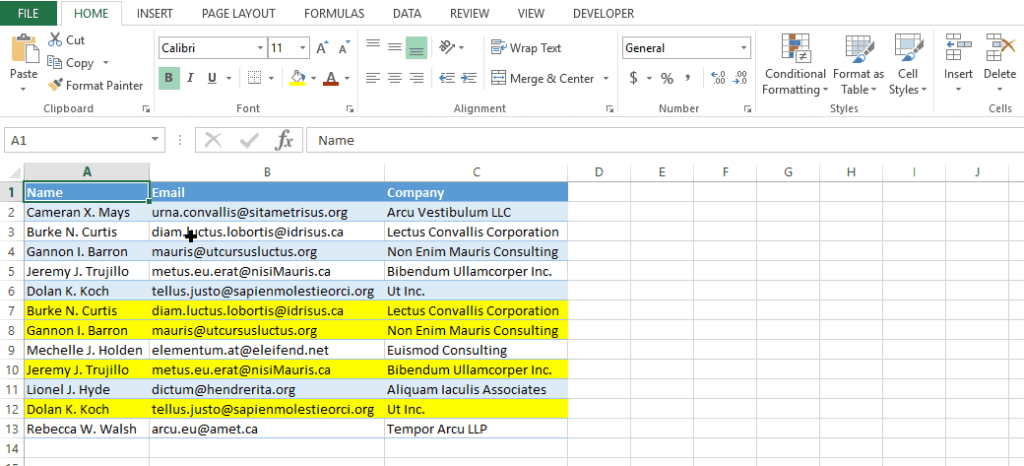
Imagine this: You’re working on an Excel sheet, and suddenly, you notice the same names, numbers, or emails appearing multiple times. Frustrating, right? Instead of deleting them one by one, let Excel clean up the mess instantly!
Here’s How to Do It:
- Click anywhere inside your data.
- Go to Data → Remove Duplicates.
- Select which columns you want to check for duplicates, or let the excel decide.
- Click OK, and Excel will remove all the extra copies in seconds!
That’s it! No more duplicate headaches—just a clean, organized sheet ready to go! ✅
3. Highlight Important Data Instantly 🔥
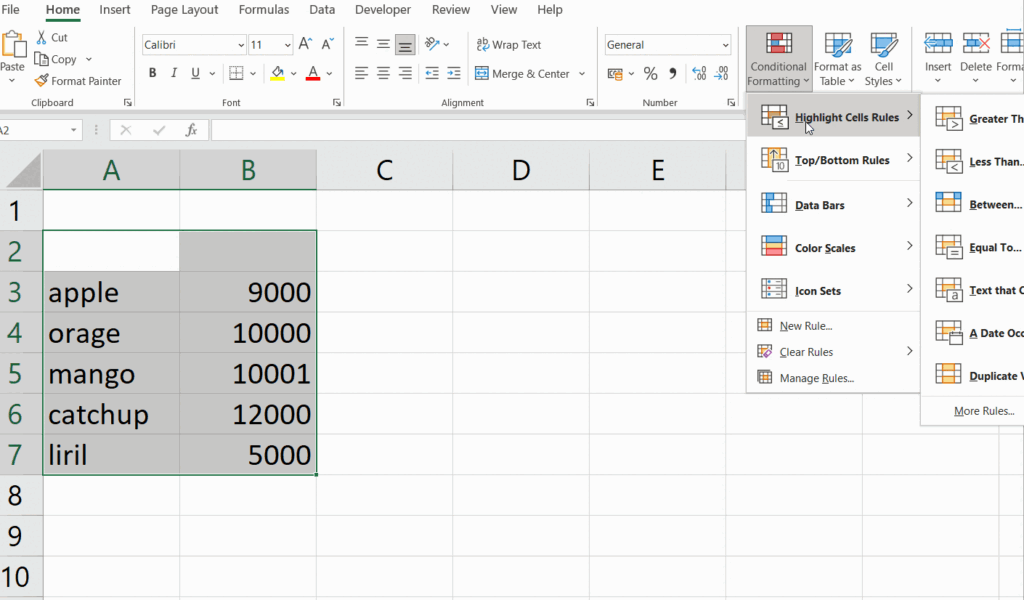
Ever struggled to find key numbers in a giant spreadsheet? Let Excel do it for you with Conditional Formatting!
Example:
Want to highlight all sales above $10,000 in bright red?
- Select your sales data.
- Click Home → Conditional Formatting → Highlight Cells Rules → Greater Than.
- Enter 10,000 and choose a bold color.
Now, your important numbers pop out like magic! 🎩✨
4. Resize All Columns at Once (Stop Dragging Them One by One!)
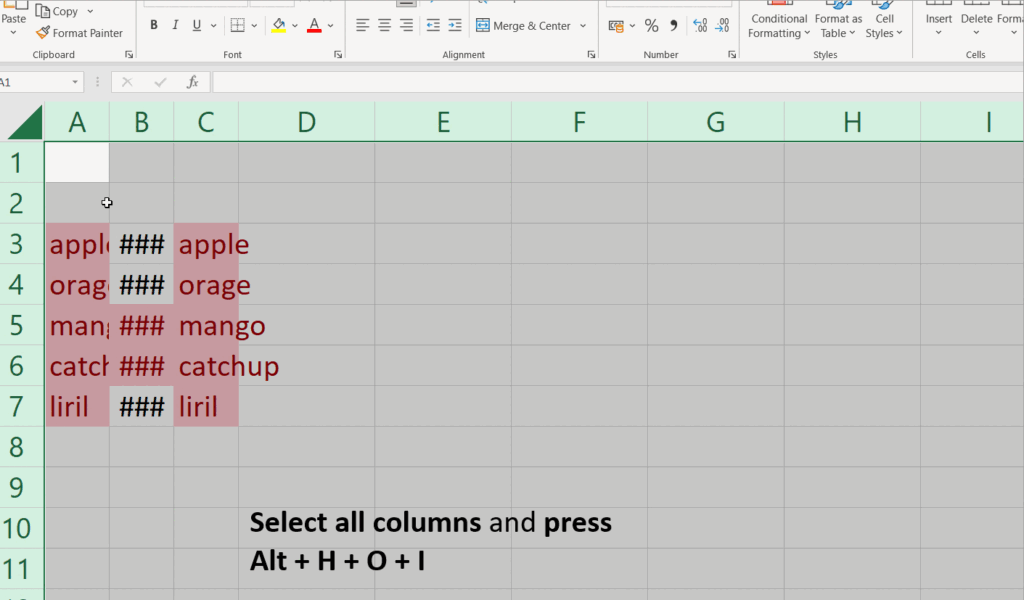
Manually adjusting column widths = wasting time. Here’s a one-second fix:
👉 Select all columns and press Alt + H + O + I
Done. Your columns magically adjust to fit the data perfectly. (You’re welcome.)
5. Stop Manually Splitting Data – Use Text to Columns!
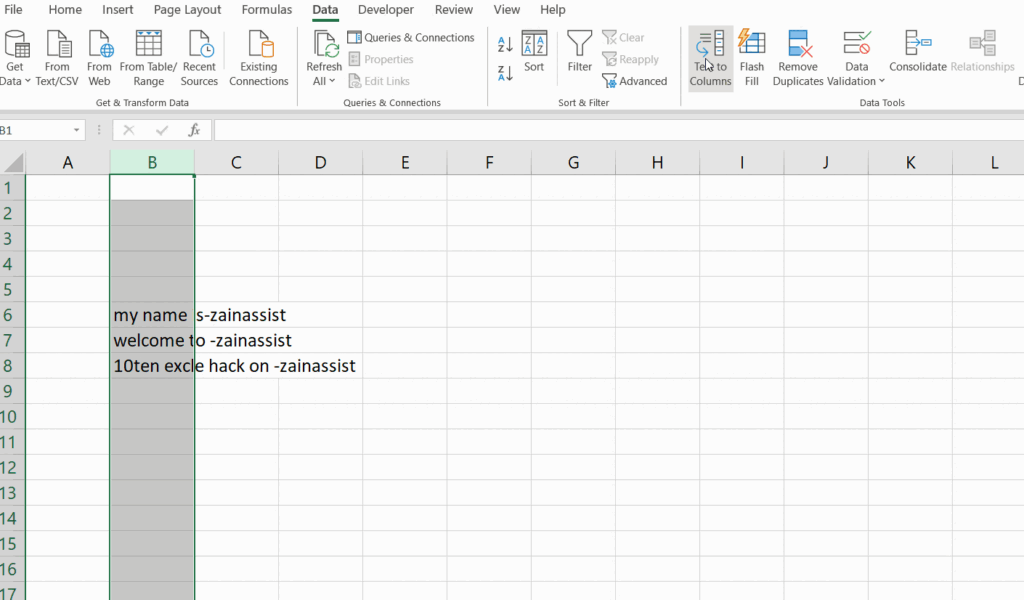
Ever copied data from an email or report and ended up with everything jammed into one column? No worries—Excel’s Text to Columns tool will split it up in seconds.
Steps:
- Select the messy column.
- Click Data → Text to Columns.
- Choose Delimited (and pick a separator like commas or spaces).
- Click Finish—done!
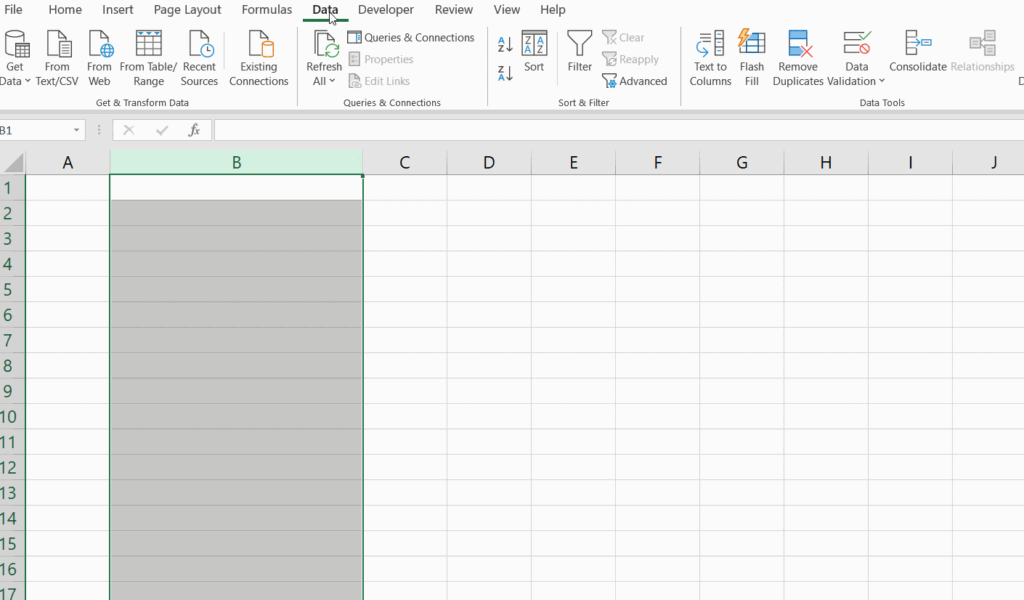
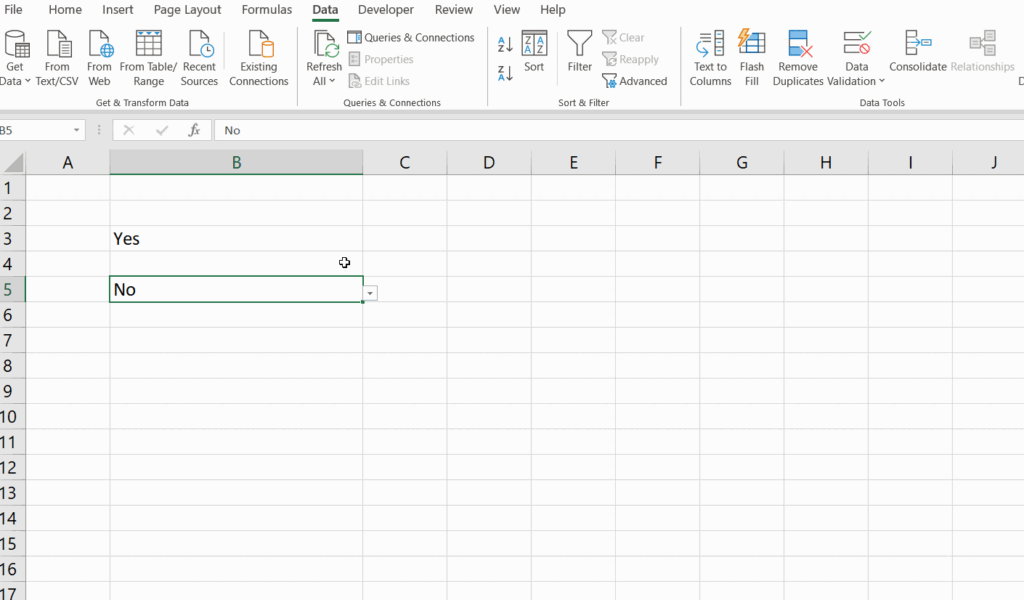
6. Drop-Down Lists – Stop People From Messing Up Your Data 🎯
If you’re tired of people typing random things into your spreadsheet (Yes, Bob, “Maybe” is not a valid entry!), create a drop-down list for them to choose from.
Steps:
- Select the column.
- Go to Data → Data Validation → List.
- Type in your allowed values (e.g., “Yes, No, Maybe”).
Now, people can only select valid options—no more errors!
7. Lock Cells So No One Can Mess Up Your Work 🔒
Ever worked hard on a report, only to find someone accidentally deleted important formulas? Protect your work by locking your important cells.
Steps:
- Select the cells to protect.
- Click Review → Protect Sheet.
- Set a password (optional).
Now, only you can make changes! Goodbye, accidental edits.
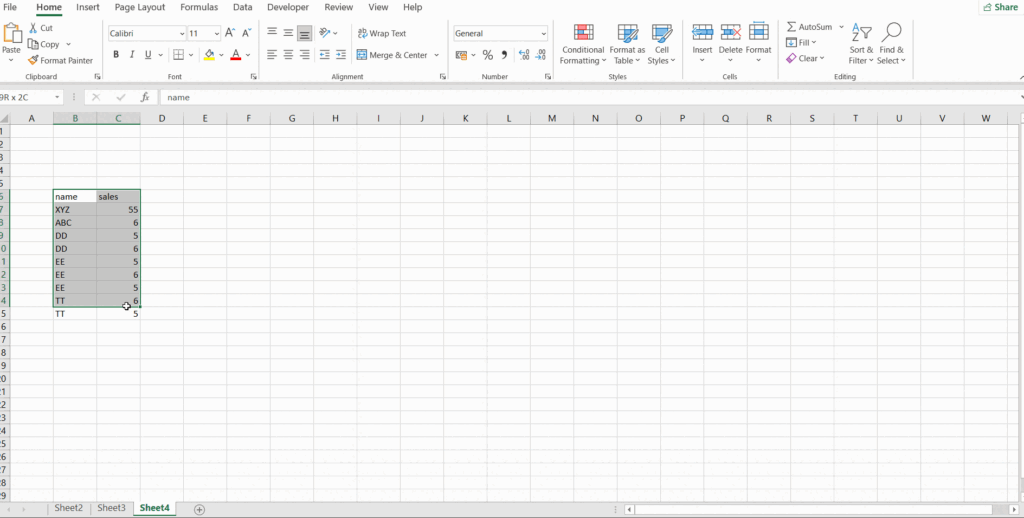
8. Pivot Tables – Summarize Data Like a Pro 📊
Want to summarize thousands of rows in a few clicks? Meet your new best friend: Pivot Tables.
Example:
Imagine you have a huge sales report. You need to find total sales per product. Instead of filtering manually, do this:
- Click Insert → Pivot Table.
- Drag “Product” to Rows and “Sales” to Values.
- Done! A clean, organized report in seconds.
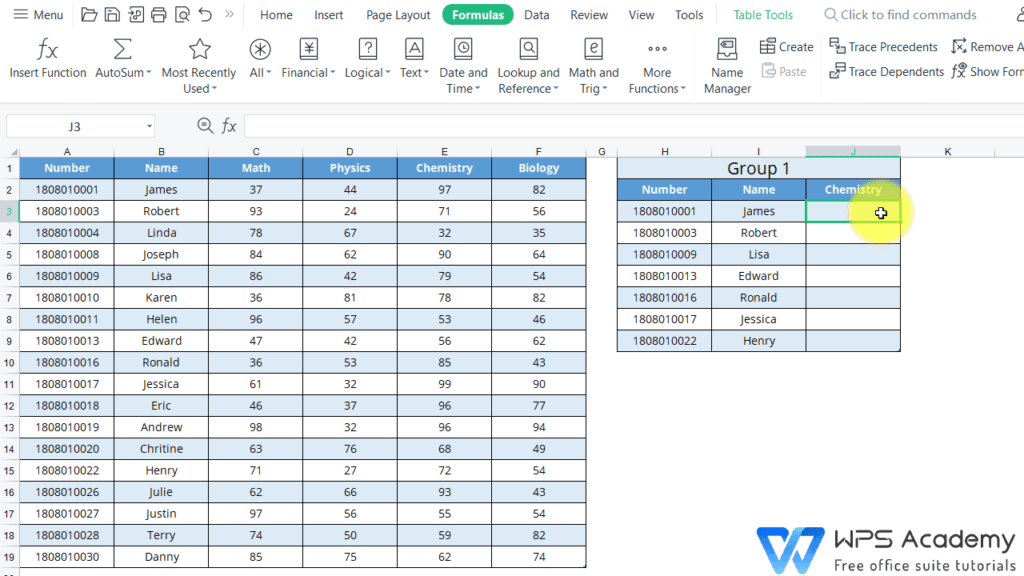
9. Instantly Find Data with VLOOKUP & XLOOKUP 🔎
Instead of scrolling endlessly to find something, let Excel search for you.
Example:
- You have a price list.
- You need to find the price of “Laptop”.
- Instead of searching, use VLOOKUP:
Boom! Excel finds it instantly.
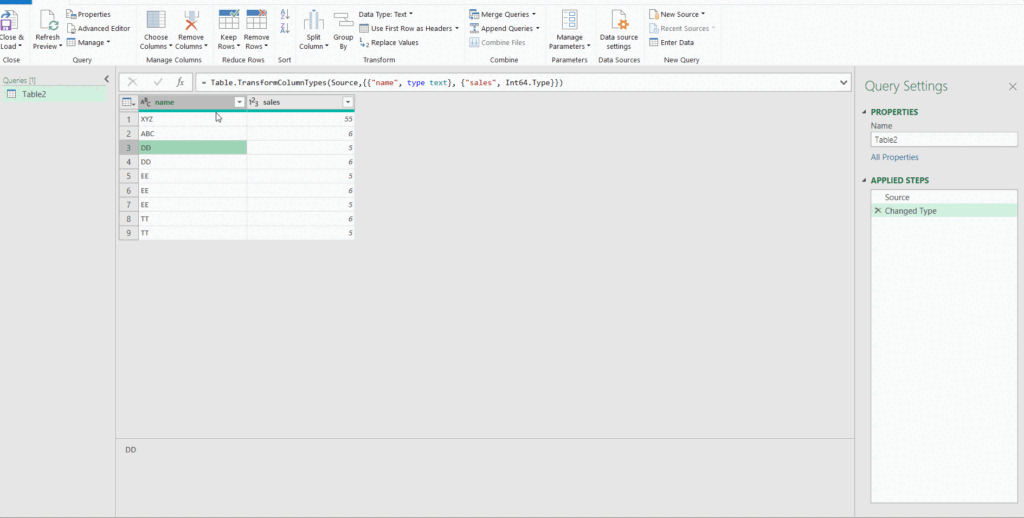
10. Stop Cleaning Data Manually – Let Power Query Do It!
Messy data? Instead of spending hours cleaning it, use Power Query to automate the process.
Steps:
- Select your data.
- Click Data → Get & Transform → Power Query Editor.
- Remove blank spaces, fix text, and reformat automatically!
Now, you never have to clean that data again.
Final Thoughts
Excel isn’t scary—it’s powerful when you know the right tricks. These 10 hacks will save you time, boost productivity, and make you look like an Excel genius.
Try them out and let me know which one is your favorite! Drop a comment below if you have any other cool Excel tricks to share. 🚀💡